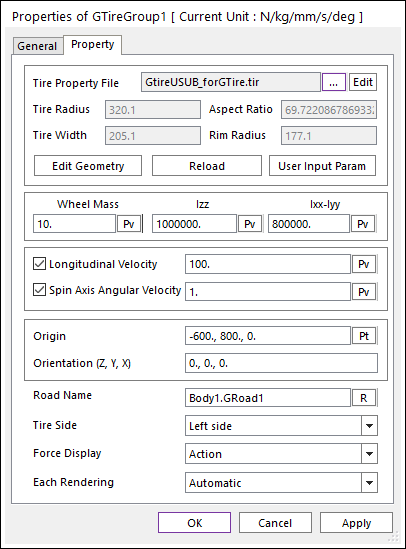
Figure 1 Property dialog of GTire Group
•Tire Property File: Sets the tire file by clicking the … button and can modify the tire file using it Edit button.
•Tire Radius: Shows the tire radius calculated by tire file.
•Aspect Ratio: Shows the aspect ratio calculated by tire file.
•Tire Width: Shows the tire width calculated by tire file.
•Rim Radius: Shows the rim radius calculated by tire file.
•Edit Geometry: Enters editing mode of tire geometry.
•Reload: Reloads the tire file.
•User Input Param: Opens the User Input Parameter dialog. This button is only available for RD-USER vender type of tire file.
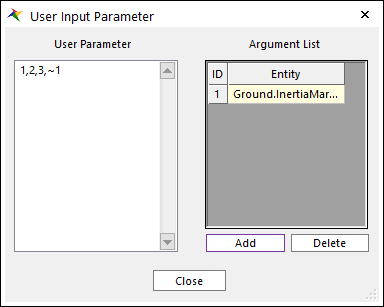
•User Parameter: Input user’s parameter.
•Add: Adds argument list.
•Delete: Deletes argument list.
•Wheel mass: Defines the mass property of the whole tire body.
•Izz: Defines the Izz moment of inertia of tire body. (The z axis is the spin axis of tire)
•Ixx-Iyy: Defines the Ixx moment and Iyy moment of inertia of tire body. (The x axis and y are the radial direction.)
•Longitudinal velocity: Defines the initial translational velocity of the x direction.
•Spin axis angular velocity: Defines the initial rotational velocity of the z axis.
•Origin: Defines the location of the tire body
•Orientation (Z,Y,X): Defines the 3-2-1 Orientation of the tire body
•Road Name: Sets the GRoad by clicking the “R” button. If the GRoad does not exist, the user closes the GTire property dialog normally.
•Tire Side: Selects the left profile or the right profile if the 2D road is the polyline road type. For more information, refer to Polyline road type property.
•Force display: Activates or inactivates the display of the tire force when playing the animation.
•Each Rendering: The selected mode can be displayed in Each Render mode. For more information, click here.